My Telecommuting article (see here) has reached the pinnacle of any persons journalistic dreams....I have been published in the Tracy Press !! :-)
Part 2 is coming soon!
Wednesday, November 28, 2007
Monday, November 26, 2007
Meraki Wireless Networking
 The December 2007 issue of "Popular Science" Announced their Computing Grand Award Winner was Meraki. Since I never heard of Meraki, and their wireless product sounded interesting, I figured I'd take a peek at their website.
Verrry interrresting. It turns out that Meraki is evangelizing wireless networking by, and for, the masses.
The Old Way
If you have been following this blog, you know that I went to several WiFi hotspots in Tracy, CA a few postings ago? Well, these WiFi hotspots are put together by one company be it McDonalds, Barnes & Noble, or Starbucks, etc. You have WiFi connectivity while in that establishment, but, as soon as you leave the near vicinity...you get nothing.
Meraki's New Idea
Meraki is looking at things a bit differently.
They have developed relatively inexpensive wireless networking equipment or nodes (including a solar powered version, see the picture) that ANYONE can purchase, plug into their home network, and easily (NOTE: I have NOT tested this product so I do not know if it works or how easy it really is) join the network of other Meraki users.
This is known as Peer-to-Peer networking and, as it grows, it grows in a "mesh". Basically, your node supports the greater goal of Internet connectivity for everyone (like the individual Borg). If your node goes down, your users are simply (ok, not so simply for the designer of the network, but, to the user it is) routed to another node in the "mesh" and they are good to go. Traffic is likewise routed thru the most efficient path to the Internet. Like taking Patterson Pass rather than 205 to get to work after an accident on 580.
Pretty sweet.
A community, like Tracy, can build a "community network" one Meraki user at a time. For example, I can buy a Meraki and serve my neighborhood with wireless networking (like I can do now with my Linksys Wireless router). The difference with Meraki is that a neighbor 1 block away can also buy a Meraki node and join my initial network. That neighbor can now support users farther away (and more of them in total) than I could with my Linksys. As more and more users come on-line, eventually the entire City of Tracy can be one large wireless Internet node.
Make Sense? It's like Legos....you just keep building and expanding.
Check out this map of the San Francisco network (or in the picture below) that is up and running now (again, I have not seen this or experienced it).
Impressive.

The networking units are fairly inexpensive and I see they support 802.11 b and g specifications (see my previous post on WiFi connectivity for an explanation), so your Laptop, iPhone, etc will work.
All we need is someone to start a network in Tracy, and few people with high speed Internet access to follow suit.
Remaining questions include: How secure is this network? Can hackers get in easier than the regular Internet (and then wreak havoc with the networked users)? Is my computer more vulnerable on this network? Who manages it when it grows to cover all of Tracy? Will students use it while in class? Does it support H.323 videoconferencing? Does it include firewalls? Can they be turned off? Oh, I'll stop here, I'm sure I can list a few more...

Sunday, November 18, 2007
Telecommuting: Crossing the Threshold to Work, Part 1
See this article in the Tracy Press "Our Town" section of the Sunday paper.
Part 1: Introduction
BEEEEPPPP. BEEEEEPPPP. Arrrgghhhh. It’s 5:00 AM and your alarm clock is announcing the start of a new day. You hurry to get ready for work, then climb into your trusty automobile (or climb aboard the ACE train) for the, sometimes stressful, one or two hour commute to work. If your day is normal, you might: talk with clients on the phone, spend a few hours on the computer, design hardware or software for the next great product, research ways to save the environment, write reports, or attend hours of meetings (none of which are pointless, right?).
At 5:00 PM, you climb back in your automobile (or aboard the homeward bound ACE Train). If there is an accident, or cows on the rail, don’t count on being home before 8 PM. All of the time you spend in transit leaves precious little time for a quality family life: helping the kids with homework, cleaning up the yard, or getting to know your neighbors. If you are getting older (like me), sleep beckons, because you know that the alarm will, before you know it, hark the arrival of a new day.
Repeat 200 plus times a year…..for years, and years.
There has to be a better way. As it turns out, if the first paragraph accurately describes your typical day at work, chances are you can work at home at least one or two days a week and maybe more. You can telecommute.
The concept of working at home has been around for quite a long time, but, there have always been “barriers” blocking the wide acceptance of telecommuting or telework. Some of these barriers are cultural, and others are (or were) technical.
With the growth, and increased reliability, of the Internet and the availability of affordable high-speed connections to the home, as well as improved computer and network technology, the technical barriers are pretty much a thing of the past. But, the much harder cultural barriers remain. One such barrier is the old fashioned opinion that you need to be at your desk to be working. If you are not there, you are not working. Right? WRONG!
In this day of increasing gas prices, nearly continuous traffic congestion on 5, 205, 580 and 680, long commutes from the bedroom community of Tracy to the Bay Area, global warming, terrorism, the threat of disease (remember the bird flu?), the need (yes, the need) to telecommute is increasing. In short, times have changed: Telecommuting was once thought of as being a benefit, or perk, for the employee (and could quickly be taken away). Now it is clear that telecommuting benefits BOTH the employee and the employer and is fast becoming critical for an organization, for example, to remain operational in times of distress.
This series of articles, written with the Tracy commuter in mind, will, over the next month or two, introduce you to:
Part 2: The concept of telecommuting, its advantages and disadvantages, and who may be able to telecommute.
Part 3: The basics of telecommuting including what the employer and employee must know, and accomplish, to make the telecommuting experience the best it can be.
Part 4: The basic technology (phone, Internet, computer, network) needed to effectively telecommute and how to keep your computer as safe and reliable as it can be.
Part 5: The advanced technology (videoconferencing and collaboration) that may help to overcome many of the cultural out-of-sight out-of-mind issues and allow the remote worker to more effectively participate in the “normal” workday.
Part 6: Interviews with Tracyites who telecommute and some companies that allow telecommuting in the surrounding area. If you telecommute now, and want discuss your experiences, please email me at mike@telbitconsulting.com.
I have put up a very short questionnaire here: http://www.telbitconsulting.com/survey.html . I will include the results, if any, during the course of this series.
In the meantime, don’t be afraid to talk to your employer about working at home. The benefits for both, as you will find out, are overwhelming.
Tuesday, November 13, 2007
Megaconference

Every year for the past 8 years, the folks at Ohio State University have put on what the Tech Detective (YeOldeTechy) considers the single most outstanding and unique, "virtual", worldwide event ever, The Megaconference.
I know those are strong words, but, they are true.
Thousands of students, educators, and hundreds of schools, universities, and organizations gather for a very full day of interactive learning starting in the early morning (Pacific US time, I know, believe me) to very late at night.
The attendees come from virtually anywhere: Finland, France, United States, Australia, Taiwan, and Japan to name just a few. They can talk to each other, listen and watch presentations, and get to know each other in ways not possible just 8 short years ago.
The technology used is H.323 IP (meaning it uses the Internet) videoconferencing. And although many still fear this technology (or are unaware of it), Dr. Bob Dixon and his crew have taken up the challenge to use videoconferencing to unite the world.
YeOldeTechy says BRAVO to all involved in this great adventure. Check out a few of the screen shots from the Megaconference Highlight video stream.


Sunday, November 11, 2007
SightSpeed
Rating: 3.5 Watertowers


I had first heard about SightSpeed a few years ago while working at LBL. I checked them out at the time, but, since we were involved in standards-based H.323 IP videoconferencing, SightSpeed held little interest for our user base.
 This week I have taken another look at the free version of SightSpeed. The passage of time has lead to improvements in SightSpeed and also to my re-thinking the need for a videoconferencing application to be "standards-based". After all, if the application is easy to download and install, is easy-to-use, and anyone connected to the Internet can use it...that is all you (or your team) really needs.
SightSpeed meets these requirements.
If you are a telecommuter, using SightSpeed (and ooVoo from a previous post), to visually connect with the office is a great way to avoid the problems of "out of sight, out of mind". And the price is right. :-)
Quick Overview
SightSpeed is a client/server collaboration (video and or audio conferencing) application. It works on Windows and Mac operating systems (I see no mention of Linux).
If you wanted to do videoconferencing, all you need is a web cam. The Free version only allows point-to-point calls. The video and audio quality appear to be good.
Windows, Mac, and Internet Minimum Requirements
Installation
Before you start, make sure your web cam is plugged into your USB port and ready to rock and roll. I plugged mine in late and the SightSpeed app never did see it until I finished the set-up and re-booted the application. And then I had to go back and change my video and audio settings to match what I would be using. Hmmmm, it might be good if the developers could find a way to ID devices that are plugged in during set-up?
Visiting the SightSpeed web site (http://www.sightspeed.com/) the option to download either the free version or the "business" version are available on the first page.
Clicking on the Free Download button brings you to a form to fill out to sign up for an account. Once you fill in all the information, the download to your computer takes a few minutes.
Clicking on the set-up executable starts the installation. SightSpeed proceeds thru several steps including:
 NOTE: Check your email first! You will need to fire up your service by clicking on a link in the email. The developers could put in a warning that you need to do this...I did not see one and only figured it out after I failed to log in.
Once this was done, I was able to log in and load up SightSpeed. I then "Exited" SightSpeed and fired it up again. It finally saw my Web Cam and I was able to set up my video and audio options. Yeah!
There is a fishbowl demo call you can make (I remember this from a few year ago...a great testing device!). I tried a few times until it was available, and then connected just fine.
 Notice the ads. This is how SightSpeed keeps this a free service, but, the one ad, is a bit intrusive and you have to close it to see the list of contacts. The price you have to pay, I suppose for FREE ;-)
Some Features
The free version, of course, has a limited set of features, but, still is pretty powerful.
SightSpeed offers other products for a fee, that provide more capability (such as file transfer and multipoint meeting capability). They have also recently introduced a "Business" version (I'm not sure if it supports H.323...I will investigate further. NOTE: It supports SIP which is a newer connection protocol than H.323 and is taking longer, for various reasons, to break into the video arena than expected).
Here is the embedded test video I made (it will go away in 30 days).
Real World Testing
 I downloaded SightSpeed for Lori and made a few test calls. Here are the results.
I could see Lori appear as "available" on my contact list.
 And by clicking on the correct icon, I could fire up a chat session with her.
I then called her (and she me). The connection time was impressively low and the connection quality was fine. Not Telepresence or High Definition by any means, but, who needs that anyway? You do not need super quality for effective communication, just look at your cell phone if you doubt what I just said.
 Here is a shot of Sunny. Note that I told him to stay, I walked inside the house, took a few screen shots then called him! What a well trained dog....he got a big treat.
Overall, SightSpeed is a fine tool for personal use and also for business use by anyone who wants to connect to work or members of their team for free. The telecommuter can use SightSpeed effectively to remain in view of their boss or group members.
Update: Answers to my Email
Yesterday I wrote to SightSpeed and asked a few questions. This morning, bright and early, Scott Lomond had responded. Here are the questions and answers.....thanks to Scott for his very quick response! :-)
I had first heard about SightSpeed a few years ago while working at LBL. I checked them out at the time, but, since we were involved in standards-based H.323 IP videoconferencing, SightSpeed held little interest for our user base.
 This week I have taken another look at the free version of SightSpeed. The passage of time has lead to improvements in SightSpeed and also to my re-thinking the need for a videoconferencing application to be "standards-based". After all, if the application is easy to download and install, is easy-to-use, and anyone connected to the Internet can use it...that is all you (or your team) really needs.
SightSpeed meets these requirements.
If you are a telecommuter, using SightSpeed (and ooVoo from a previous post), to visually connect with the office is a great way to avoid the problems of "out of sight, out of mind". And the price is right. :-)
Quick Overview
SightSpeed is a client/server collaboration (video and or audio conferencing) application. It works on Windows and Mac operating systems (I see no mention of Linux).
If you wanted to do videoconferencing, all you need is a web cam. The Free version only allows point-to-point calls. The video and audio quality appear to be good.
Windows, Mac, and Internet Minimum Requirements
- Windows: Windows 2000, XP or Vista, 1 GHz CPU, 256 Meg RAM. The file size is about 6.61 Meg.
- Mac: OSX 10.3.9, 256 Meg RAM, 1 GHz G4 CPU, Any Intel or G5 based Mac. The file size is about 14.3 Meg.
- I would also have DSL or a cable modem Internet connection for best results. I have DSL, as you may already know, with an upstream of 384 kbps.
Installation
Before you start, make sure your web cam is plugged into your USB port and ready to rock and roll. I plugged mine in late and the SightSpeed app never did see it until I finished the set-up and re-booted the application. And then I had to go back and change my video and audio settings to match what I would be using. Hmmmm, it might be good if the developers could find a way to ID devices that are plugged in during set-up?
Visiting the SightSpeed web site (http://www.sightspeed.com/) the option to download either the free version or the "business" version are available on the first page.
Clicking on the Free Download button brings you to a form to fill out to sign up for an account. Once you fill in all the information, the download to your computer takes a few minutes.
Clicking on the set-up executable starts the installation. SightSpeed proceeds thru several steps including:
- Option to choose the language of choice
- A video optimization which when complete asks you if the picture looks "correct" (mine did).
- A video camera selection
- A network selection including (dial-up modem, basic DSL, basic cable, premium DSL or cable (mine), University T1 fiber or fiber, and "I Do Not Know")
- Speaker selection and test (mine defaulted to my laptop speakers)
- Microphone connection and test
- Optional Settings (in addition to the defaults I selected auto answer and Ring PC speaker on Incoming Call)
 NOTE: Check your email first! You will need to fire up your service by clicking on a link in the email. The developers could put in a warning that you need to do this...I did not see one and only figured it out after I failed to log in.
Once this was done, I was able to log in and load up SightSpeed. I then "Exited" SightSpeed and fired it up again. It finally saw my Web Cam and I was able to set up my video and audio options. Yeah!
There is a fishbowl demo call you can make (I remember this from a few year ago...a great testing device!). I tried a few times until it was available, and then connected just fine.
 Notice the ads. This is how SightSpeed keeps this a free service, but, the one ad, is a bit intrusive and you have to close it to see the list of contacts. The price you have to pay, I suppose for FREE ;-)
Some Features
The free version, of course, has a limited set of features, but, still is pretty powerful.
- Point-to-point videoconferencing
- Record a video mail and provides a link in the email to connect to it (stays for 30 days)
- Record video for a blog (see below if it works for the next 30 days, then it will go away)
- Inbox to view video mails (either what you sent or from others trying to contact you)
- I put a "Call Me on SightSpeed" button on my web site (here)
- IM /chat
- Full-screen video option
- Video only option
SightSpeed offers other products for a fee, that provide more capability (such as file transfer and multipoint meeting capability). They have also recently introduced a "Business" version (I'm not sure if it supports H.323...I will investigate further. NOTE: It supports SIP which is a newer connection protocol than H.323 and is taking longer, for various reasons, to break into the video arena than expected).
Here is the embedded test video I made (it will go away in 30 days).
Real World Testing
 I downloaded SightSpeed for Lori and made a few test calls. Here are the results.
I could see Lori appear as "available" on my contact list.
 And by clicking on the correct icon, I could fire up a chat session with her.
I then called her (and she me). The connection time was impressively low and the connection quality was fine. Not Telepresence or High Definition by any means, but, who needs that anyway? You do not need super quality for effective communication, just look at your cell phone if you doubt what I just said.
 Here is a shot of Sunny. Note that I told him to stay, I walked inside the house, took a few screen shots then called him! What a well trained dog....he got a big treat.
With Lori off-line, I was able to leave a video message that I had called and to call me back. When Lori logged back on, she had my message waiting in her “Inbox”. Suggestion: There was no indication that a message was waiting in the Inbox, it would be cool if, when a person logs in to SightSpeed, if there was a message or a beep or some sort of “message waiting” indication. As it is, you have to manually check your Inbox.
SummaryOverall, SightSpeed is a fine tool for personal use and also for business use by anyone who wants to connect to work or members of their team for free. The telecommuter can use SightSpeed effectively to remain in view of their boss or group members.
Update: Answers to my Email
Yesterday I wrote to SightSpeed and asked a few questions. This morning, bright and early, Scott Lomond had responded. Here are the questions and answers.....thanks to Scott for his very quick response! :-)
Question: Is the Business application H.323 compatible?
Answer: No. It is SIP.
Question: If not, do you provide a "gateway" to H.323 endpoints or MCU's?
Answer: No,but we are looking at how to do this.
Question: What makes this application "Business" compatible (I see business
Answer: Technically, the Free version is for personal and non-commercial use,
Question: What firewall ports need to be opened for either the FREE or BUSINESS versions?
Answer: No inbound ports need to be left open for SightSpeed. You do
Question: Are you planning on supporting Linux?
Answer: We have a Linux client that we do not ship commercially. We do not have any immediate plans to release it. It would require some UI updating to bring it into alignment with our latest features.
Question: Do you plan on supporting application sharing?
Answer: Yes, most likely through a partnership with an outside party.
Question: In your Multiple Video Viewing mode, does that allow "desktop sharing"? It is a bit confusing...
Answer: No, we don't allow desktop sharing. You can run SightSpeed in Video Only mode, which separates the video window from the rest of the UI. It then stays on top of your screen, allowing you to review/work with other apps that are also running.
Thursday, November 8, 2007
How cool is this?
In a previous post, I evaluated Proclaim by Netbriefings. Needless to say, I liked it a lot.
Mira from Netbriefings posted a comment to that blog on November 5th. I just picked my head up from Subbing the whole week and saw the comment.
The ability to comment via video, with the quality that is apparent, enhances my opinion of the POWER of this technology.
Check out Mira's reply.
http://proclaim.netbriefings.com/flv/nb/nb004/netbriefinnb004100174/
This is VERY VERY cool. Thanks, Mira! :-)
Mira from Netbriefings posted a comment to that blog on November 5th. I just picked my head up from Subbing the whole week and saw the comment.
The ability to comment via video, with the quality that is apparent, enhances my opinion of the POWER of this technology.
Check out Mira's reply.
http://proclaim.netbriefings.com/flv/nb/nb004/netbriefinnb004100174/
This is VERY VERY cool. Thanks, Mira! :-)
Saturday, November 3, 2007
Blu-Ray or HD-DVD
In the old days, we asked "VHS or Beta" ? Now we are asking "Blu-Ray or HD-DVD"?
The choice between VHS and Beta was relatively clear cut. The quality of Beta was better, while the cost of VHS was lower. VHS won.
Today, the choice between Blu-Ray and HD-DVD is a bit harder. Both give great video and audio quality. HD-DVD is less expensive, but that does not seem to be the major factor this time around.
The differences this time are twofold:
Both HD-DVD and Blu-Ray play your existing DVD's and will upconvert the video quality to give as good a picture as possible on your HDTV.
Tech Detective says: Up-converting gives you a pretty darn good picture.
What do you do?
Tech Detective suggests: Nothing.
Eventually, something will happen, either there will be two "standards" and the content providers / movie studios will burn movies to either (some already do that), or the players that play both standards will become more available / affordable (some of these players exist now too, see this LG unit). Or Blu-Ray or HD-DVD will win and the other will go the way of Beta.
Only time will tell. In the meantime, check out CNET's opinion.
The choice between VHS and Beta was relatively clear cut. The quality of Beta was better, while the cost of VHS was lower. VHS won.
Today, the choice between Blu-Ray and HD-DVD is a bit harder. Both give great video and audio quality. HD-DVD is less expensive, but that does not seem to be the major factor this time around.
The differences this time are twofold:
- The movie studios are picking sides. Some, like Disney and Sony (the originator of Blu-Ray technology and also Beta), burn their movies only for Blu-Ray. Others, like Universal and Paramount have picked HD-DVD.
- Also in the mix are the computer folks who were not a factor the last time. Microsoft has picked HD-DVD while Apple has sided with Blu-Ray. Arrrghhh..
Both HD-DVD and Blu-Ray play your existing DVD's and will upconvert the video quality to give as good a picture as possible on your HDTV.
Tech Detective says: Up-converting gives you a pretty darn good picture.
What do you do?
Tech Detective suggests: Nothing.
Eventually, something will happen, either there will be two "standards" and the content providers / movie studios will burn movies to either (some already do that), or the players that play both standards will become more available / affordable (some of these players exist now too, see this LG unit). Or Blu-Ray or HD-DVD will win and the other will go the way of Beta.
Only time will tell. In the meantime, check out CNET's opinion.
Friday, November 2, 2007
Telecommuting Survey
Update: See all of my blog entries on Telecommuting
+++
We have posted a very short Telecommuting Survey on the Tel Bit Consulting Web Site.
We will be gathering information (more specifically from folks in the Tracy, CA area but will gladly accept take other input as well) and posting the results sometime in the near future (if we get enough respondents).
If you have a few seconds, and telecommuting is of possible interest to you, please fill out the survey!
Check out this buzz word filled video about TeleWork. Even though it appears to be a marketing thing for the TeleWork Consortium, it is, nonetheless, informative and interesting.
+++
We have posted a very short Telecommuting Survey on the Tel Bit Consulting Web Site.
We will be gathering information (more specifically from folks in the Tracy, CA area but will gladly accept take other input as well) and posting the results sometime in the near future (if we get enough respondents).
If you have a few seconds, and telecommuting is of possible interest to you, please fill out the survey!
Check out this buzz word filled video about TeleWork. Even though it appears to be a marketing thing for the TeleWork Consortium, it is, nonetheless, informative and interesting.
Digital TV Conversion
+++++
See the latest updates on this topic here.
Update: You can apply for one or more $40 converter box coupon(s) at this web site. Or you can call: 1-888-388-2009. Do it soon. There is a limited amount of money for the coupons.
+++++
I was watching KCRA Channel 3 this morning when they had a report on the impending switch over of Television broadcasting service. Although the report was interesting, I was still confused.
Here is the deal:
On February 17, 2009 the broadcast TV service will change to a DIGITAL format.
1. If you have an old TV and have an antenna on your roof, or use rabbit ears, you will need to purchase a converter box (or a newer TV with a digital "tuner") to change the digital signal from the antenna to one that your TV can recognize.
2. If you have an old TV and use CABLE or SATELLITE service, you may not need to change anything. If you currently use a set-top box provided by the provider, you are golden. Also, cable companies are not required to change to digital and may keep analog signals flowing to your home. So if you are like me, with an old TV with the cable plugged directly into it, I can still watch many channels just fine. However, the cable companies can decide to change to digital, if they do, then your old TV will have to use a set-top box. Confused?
3. If you have a digital tuner in your TV now, or an HDTV, you will not need to change anything.
NOTE: HDTV is digital but digital is not necessarily HDTV.
Here is the main FCC web site that may help answer some of your questions, but, also YeOldeTechy will be taking a closer look at this in the coming months and will post more information here and on my web site. I'll draw some pictures to make this clearer and post them on my web site....
See the latest updates on this topic here.
Update: You can apply for one or more $40 converter box coupon(s) at this web site. Or you can call: 1-888-388-2009. Do it soon. There is a limited amount of money for the coupons.
+++++
I was watching KCRA Channel 3 this morning when they had a report on the impending switch over of Television broadcasting service. Although the report was interesting, I was still confused.
Here is the deal:
On February 17, 2009 the broadcast TV service will change to a DIGITAL format.
1. If you have an old TV and have an antenna on your roof, or use rabbit ears, you will need to purchase a converter box (or a newer TV with a digital "tuner") to change the digital signal from the antenna to one that your TV can recognize.
2. If you have an old TV and use CABLE or SATELLITE service, you may not need to change anything. If you currently use a set-top box provided by the provider, you are golden. Also, cable companies are not required to change to digital and may keep analog signals flowing to your home. So if you are like me, with an old TV with the cable plugged directly into it, I can still watch many channels just fine. However, the cable companies can decide to change to digital, if they do, then your old TV will have to use a set-top box. Confused?
3. If you have a digital tuner in your TV now, or an HDTV, you will not need to change anything.
NOTE: HDTV is digital but digital is not necessarily HDTV.
Here is the main FCC web site that may help answer some of your questions, but, also YeOldeTechy will be taking a closer look at this in the coming months and will post more information here and on my web site. I'll draw some pictures to make this clearer and post them on my web site....
Proclaim by Netbriefings
4 Watertowers
Introduction
Streaming video used to be a difficult process requiring special hardware and software and a team of technicians. Of course, high quality video streaming still needs all that, but, if you are interested in “personal streaming” and can live with the trade-off off super high quality for easy-to-use and extremely short turn around, then Proclaim may be for you.
I first heard of Proclaim a few months ago when it was first released. At the time I was investigating streaming solutions and was amazed how difficult the process could be to implement and understand a streaming solution. I had used, or rather tried to use, other products that made “personal streaming” available, but, I was disappointed.
With Proclaim, however, YeOldeTechy found a great product that is easy to use and the quality is sufficient to solve nearly all of your streaming needs.
What is Proclaim?
Proclaim, as the CEO of Netbriefings explains in this YouTube video can be thought of as “YouTube on Steroids”. Really quickly, Proclaim is a “personal” video, audio and data streaming solution that allows your viewers to see your presentation via their browser over the Internet. Check out this interesting marketing video.
The steroids part comes, I suspect, from the fact that although YouTube only allows video and audio, Proclaim allows the presenter to (at a minimum):
- Upload a Powerpoint presentation to the Proclaim server
- Record video, audio, and the Powerpoint Presentation for a LIVE event, or record that presentation for later viewing (as I have done below).
- Once the recording of the presentation is complete and is stored, an email can be sent out to potential viewers with the URL of the finished presentation. The viewer, by clicking on that emailed link, brings up the presentation. Easy as 3.14.
- Provide video quality that can be much better than YouTube.
What do I need to record or view a presentation using Proclaim?
As with almost every collaboration product you will need a Windows PC. Mine is a Toshiba laptop (but I also did some testing with our Dell Dimension) running XP service pack 2, and using Norton Anti-Virus (I say that only to show that Norton is happy with Proclaim). I am connected to the Internet with an AT&T DSL line working at 384 kbps upstream.
I am also using a Logitech 4000 web cam connected into the Toshiba’s USB port. Interestingly, my ooVoo application is also using the same web cam and there is not problem using it for either recording the Proclaim presentation or using it for ooVoo. Gotta love it!
To view a Proclaim presentation all you need is a Browser that supports Flash. I believe most computers now have Flash so that is probably not going to be an issue for the vast majority of viewers.
Web Cam and Microphone Set Up
When you first log into Proclaim (as described below), click on the “Options” button and then “Device Settings”. Make sure your microphone is displayed in the menu selection, if not, go to the menu and select the correct microphone. My microphone is the Logitech 4000 web cam. An audio bar on the left shows the volume as you speak into the microphone. Very cool.
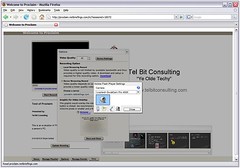
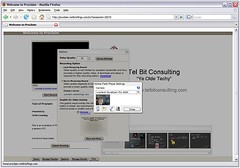
Then click on the icon of the web camera. Again you can select what camera to use. Then click on the larger camera to test the video. See the picture and my smiling face.
How Can I Upload a Presentation?
As I alluded to above, Proclaim is very easy to use. The steps for recording a Powerpoint presentation are as follows:
- Prepare your presentation.
- Go to the Proclaim web site and enter your login and password. NOTE: I have used both Internet Explorer and Firefox.
- Click on the “Archive” button
- If an alert comes up asking you to allow or deny Proclaim from accessing your web cam, click “Allow”.
- Click on “Manage Playlist” button
- Click on “Upload File"
- You will be given the change to browse your computer for the file.
- Select that file and watch the upload process.
That is pretty much it. Do it once and you will know exactly what to do the next time.
Real World Test of ProClaim
For a real test, I uploaded two presentations (one is just the Tel Bit Consulting single slide) and recorded a short presentation. No laughing…I know I’m not a professional actor, and it shows! But from this you can see the video quality as well as the quality of the slides. Very impressive. The whole recording process took about 5 minutes (not counting the 10,000 retakes needed just to get it to this level).
What are some issues?
Although Proclaim is very good, I did find a couple of little annoyances.
First of all, I could not get my Logitech 3000 web cam to work with Proclaim. I had to move to my newer Logitech 4000. I do not know why this is, and it could possibly be a local issue. However, I use the 3000 regularly for other work. Interesting.
Also, I have Office 2007 installed and I see that Proclaim does NOT recognize the new Office 2007 Powerpoint presentation as being a valid file. I had to save the presentation in Powerpoint 97-2003 format for Proclaim to see it as uploadable. When will Office 2007 be supported?
I cannot embed my Proclaim presentation in this blog like I can with a YouTube video. Maybe that can be an enhancement for future versions?
Proclaim does not appear to support customized animations. I had to make my slides without animations to get it to show properly.
Quick list of Features
Here is a quick listing of the features I took note of:
- Proclaim allows you to upload a range of file types including: WMV, PPT, MPEG, mp4, Flash (FLV)
- You can present LIVE or Record (the Live event is also recorded for later playback)
- You can manage your library and playlist
- You can move slides around to the location desired during the presentation.
- You can use the keyboard to maneuver through the presentation.
- You can record the presentation locally on your computer for higher quality video, or you can record it on-line directly on the server (this is what I did).
Future Plans and Pricing
According to the web site, Proclaim will evolve to work with Netbriefings’s eConference Enterprise streaming platform. Once there it will be able to utilize such features as: “automated invitations, attendee registration and audience tracking and reporting”. Proclaim will also evolve to allow exporting of the presentation into a video or audio podcast.
As of now, Proclaim is in free trial mode. After that is over, there is a pricing list here: http://www.netbriefings.com/proclaim/pricing.shtml.
All in all it seems to be very reasonably priced with various levels from Basic to Deluxe ranging in price from $29 per month to $195 per month for increasing capability. There is a Corporate pricing that you have to call Netbriefings to get a quote. I’ll bet that is expensive 
Summary
Proclaim makes streaming easy.
Bravo to Netbriefings for developing a solid streaming application that is super easy to use. 
HeadThere Giraffe
YeOldeTechy says: "This is COOL!"

Check out this new product that YeOldeTechy hopes he will be able to get his hands on to evaluate for this blog.
Really quickly here is what the HeadThere Giraffe is:
1. It is a Videoconferencing System that works over the Internet.
2. It is a movable robot that allows the remote person to move, look up and down, etc.
Let me give an example that is close to this new Substitute Teacher's heart....
Suppose your school has a child that is sick (or physically handicapped) at home and can't make it to school. Using a Giraffe, and whatever network connections (WiFi Wireless (see here for more on WiFi in Tracy, CA) or 3G Cellular) and firewall openings are needed, they can, theoretically, move about the school campus and attend classes almost as if they were there!
There are a million other uses for this....suppose you are a Doctor and need to do rounds at a hospital but for some reason cannot be there. You can now wander the halls visiting your patients.
Now don't get too excited (which I have a tendency to do), this is not yet ready for prime time, but, after way too many years (and too many wrinkles) evangelizing videoconferencing, YeOldeTechy thinks this may possibly be one of the "killer apps" (if such a thing exists) we have all been waiting for.
See my web site for more applications of videoconferencing (written in 1997). Many of these applications can now be expanded in capability thanks to the Giraffe.
Let us hope that HeadThere succeeds and that the Giraffe becomes ubiquitous....it is about time someone has come around who has a futuristic view, and, has the resources to develop a technology that can truly change the way we communicate.
Check out this new product that YeOldeTechy hopes he will be able to get his hands on to evaluate for this blog.
Really quickly here is what the HeadThere Giraffe is:
1. It is a Videoconferencing System that works over the Internet.
2. It is a movable robot that allows the remote person to move, look up and down, etc.
Let me give an example that is close to this new Substitute Teacher's heart....
Suppose your school has a child that is sick (or physically handicapped) at home and can't make it to school. Using a Giraffe, and whatever network connections (WiFi Wireless (see here for more on WiFi in Tracy, CA) or 3G Cellular) and firewall openings are needed, they can, theoretically, move about the school campus and attend classes almost as if they were there!
There are a million other uses for this....suppose you are a Doctor and need to do rounds at a hospital but for some reason cannot be there. You can now wander the halls visiting your patients.
Now don't get too excited (which I have a tendency to do), this is not yet ready for prime time, but, after way too many years (and too many wrinkles) evangelizing videoconferencing, YeOldeTechy thinks this may possibly be one of the "killer apps" (if such a thing exists) we have all been waiting for.
See my web site for more applications of videoconferencing (written in 1997). Many of these applications can now be expanded in capability thanks to the Giraffe.
Let us hope that HeadThere succeeds and that the Giraffe becomes ubiquitous....it is about time someone has come around who has a futuristic view, and, has the resources to develop a technology that can truly change the way we communicate.
Reality Internet Video Gone Too Far?
OK, this is happening faster than YeOldeTechy can keep up....well almost.
Check this out. People who live their lives with a web cam stuck to their heads. They are then "streamed" live on the Internet throughout their entire day.
If Yeoldetechy did that....you would get a lot more sleep. ZZZZZZZZZZZZZZZZZZZZ
I do not know about you, but, maybe this is a bit over the edge?
Check this out. People who live their lives with a web cam stuck to their heads. They are then "streamed" live on the Internet throughout their entire day.
If Yeoldetechy did that....you would get a lot more sleep. ZZZZZZZZZZZZZZZZZZZZ
I do not know about you, but, maybe this is a bit over the edge?
Simple Steps to a Safe Computer
For all the Windows PC users out there here are a few simple steps to help keep (or make) your computer as safe as it can be.
1. Surf carefully. Avoid going to web sites that are not well known or that seem suspicious. Using common sense avoids many problems.
2. Use your internal Windows firewall. It is easy to set up and use and is very flexible, even allowing H.323 videoconferencing to work thru it.
3. Use an anti-virus application. I use Norton Anti-Virus, it works in the background and has caught a few viruses (when I was not surfing safely....arrghhh). There are other applications that can be used, I try to stick with Norton or McAfee. Best Buy has these applications or you can download them. They are worth the few extra dollars.
4. Download and run Windows Defender regularly to check for unsafe (spyware) programs that may have been loaded. It is FREE and it works.
5. Make sure to run the Windows Update regularly. Microsoft spends a lot of time (mostly because they HAVE to) updating their software to close holes and vulnerabilities.
6. Add strong passwords to all your user accounts.
Get started on the road to safe computing
To scan your computer now, for FREE, go to this Symantec web site.
I tried both scans this weekend and they worked fine (and my computer survived without a problem). Note: the scans take awhile and you need Internet Explorer with Active X enabled...if you need help doing that, let me know).
Safe computing!
1. Surf carefully. Avoid going to web sites that are not well known or that seem suspicious. Using common sense avoids many problems.
2. Use your internal Windows firewall. It is easy to set up and use and is very flexible, even allowing H.323 videoconferencing to work thru it.
3. Use an anti-virus application. I use Norton Anti-Virus, it works in the background and has caught a few viruses (when I was not surfing safely....arrghhh). There are other applications that can be used, I try to stick with Norton or McAfee. Best Buy has these applications or you can download them. They are worth the few extra dollars.
4. Download and run Windows Defender regularly to check for unsafe (spyware) programs that may have been loaded. It is FREE and it works.
5. Make sure to run the Windows Update regularly. Microsoft spends a lot of time (mostly because they HAVE to
) updating their software to close holes and vulnerabilities.6. Add strong passwords to all your user accounts.
Get started on the road to safe computing
To scan your computer now, for FREE, go to this Symantec web site.
I tried both scans this weekend and they worked fine (and my computer survived without a problem). Note: the scans take awhile and you need Internet Explorer with Active X enabled...if you need help doing that, let me know).
Safe computing!
Telecommuting: A Sensible Alternative to Driving
Interesting Late Breaking News:
Read this article published Sunday, Sept 30, 2007 in the Tracy Press. It describes how commuting can be detrimental to family life in general. All the more reason to: Telecommute!-------------
For years, I have been evangelizing the value of telecommuting, only to be met with deaf ears. Hoping to drive home the value of telecommuting, I wrote an article several years ago that predicted the future (hmmm, the "future" in that article has arrived, that's scary) by describing how 580 in Livermore was being used for pedestrian traffic since cars were no longer driving on it....
How wrong was I !! Not only has this NOT come true, but, now 205 and 580 are BOTH bumper to bumper...and the problem is getting worse!
All I hear and read about (in the Tracy Press and other media) is; building new roads, widening 205, carpooling, using mass transit...never do I see, or hear, anyone speak up for the single most effective way to get cars off the road....telecommuting (or telework).
Now, I know all of my readers (yes, both of you!) cannot telecommute....certainly, I would not want Dr. Yu telecommuting, or Pat who cleans the pool. BUT, many hundreds, if not thousands, of super commuters in the local area CAN.
If they took 1 or 2 days a week to keep the car in the driveway (since everyone has the garage full of junk) they would realize ALL of the following benefits.
1. It saves you GAS and MONEY
2. It saves you TIME (no more 2.5 hour commutes to Berkeley...ONE WAY..geeez how ridiculous is that, I speak from experience)
3. It reduces our dependence on OIL, which is going away.
4. It reduces TRAFFIC (for Dr. Yu so he can get to work faster)
5. It reduces carbon EMISSIONS and help put some brakes on Global Warming. A car not started will not emit....
6. It reduces your STRESS (and slows you down in Tracy) so you can enjoy life more
7. You are more PRODUCTIVE (yeah, you can actually work without endagering others while you are on the cell phone, or text messaging, while driving...how dumb is that anyway?)
There are MANY more...
The downside to telecommuting has in the PAST been "out of sight out of mind". How backward. See my other blog entries....videoconferencing takes care of that. You can virtually be in your office at work all day long and all night if you want to be.
The only downside remaining is gaining weight. The refrigerator is too close and the food is free...so watch that.
For those who can: TELECOMMUTE!!!
It only makes sense.
Polycom PVX for H.323 Video Conferencing
August 2007
Rating: 4 Watertowers
This Blog has moved....please read this entry here.
All in all, a very nice, reliable application. Interestingly, Polycom’s headquarters is only about 30 miles away from Tracy in the Hacienda Business Park in Pleasanton, CA.
What is H.323 Videoconferencing?
To make a very long story (Yeoldetechy will be organizing a local seminar soon to explain it all) H.323 videoconferencing applications allow you to meet, and see, anyone with a similar system. The video and audio (and data) work over the Internet. Unlike ooVoo (see previous blog entry), the Polycom PVX is a “standards-based” application which means it can work with room based systems that your company, university, or school may already be using.
What is H.239 Data Conferencing?
Again the short story….this allows people in a videoconference to share their desktop computer with other videoconferencing participants. In the “old” days it was known as “People and Content”, which pretty much summed up it’s capabilities.
Now, with the great wisdom that comes with progress, we call it H.239….that does NOT sum up it’s capabilities.
What do I Need to Use the PVX?
Again, like in the ooVoo blog entry, you will need the following:
- A DSL or cable modem Internet connection
- A Windows PC running XP or Vista. NOTE: The Polycom PVX is NOT comaptible with Mac OS or Linux / Unix (and probably never will be)
- A web cam.
Basic PVX Features
Without getting really technical or introducing additional jumbled alphanumeric designations these are some of the basic features the PVX offers.
Advanced PVX features
For those who need to connect to their companies H.323 communication network, the PVX provides the following H.323 compatible features:
- Ability to assign a gatekeeper (an H.323 traffic cop)
- Enter an E.164 (assigned phone number or extension)
- Assign ports for communication for ease of firewall transversal (well..within limits)
- Statistics page that shows the connection information
- The Directory can register with a centralized database run by your organization
- The PVX allows you to set quality of service options for better video.
- Configure the PVX to work well with an internal management system from Polycom
- Alerts that tell you when something has gone wrong (camera not connected, network down, etc.)
- There is a keypad that provides telephone (dual tone multi-frequency--DTMF) signals for controlling an MCU or a Recording device
- There are zoom in and out and up, down, left and right camera controls. This allows you to control the persons camera at the far end (if they are allowing it and if there is a camera there that supports this).
The PVX user interface makes it very easy to move around and enter the information.
The robust set of features is second to none.
Yeoldetechy says: The PVX is a first class H.323 desktop videoconferencing application.
H.323 Gotchas
Firewalls and NATs (network address translators) block H.323 communication. This is due to the design of the H.323 standard and has nothing to do with the Polycom PVX design.
Getting an H.323 system to work from behind a firewall or NAT is the single most difficult task of all. Hopefully, your home network does not have firewalls configured, or it has H.323 aware firewalls (these are becoming more common). Otherwise you can pretty much say goodbye to H.323.
The PVX has some capability to recognize firewalls (and other blockers) and try to get around it to allow communication. This is very good, but, may not work in every instance.
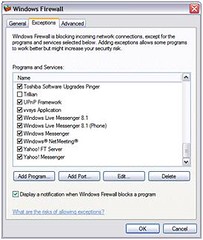
The Windows XP firewall works great, however. After allowing “vvsys”, it opens up all the necessary ports to allow communication when calls are being made.
Sooooo, if you need to communicate with H.323 and need a firewall, you can implement the local Windows firewall and turn off the network firewall. This is more difficult to do at work than at home…to say the least.
The picture below shows the check mark allowing “vvsys” as an exception on my XP machine.
Can you really videoconference over the Internet?
YES, even for business purposes. This is a new world.
Summary
This is a difficult subject for a blog that is supposed to introduce technology to the regular person in a way that they can understand.
Although H.323 videoconferencing can be complicated, the basic use of it can also be very simple. For less than $200 a TeleWorker can have a great, fully featured, videoconferencing system that works well with the organizations videoconferencing rooms and infrastructure.
For the ordinary person using videoconferencing to talk with family or friends, the PVX can be used in it’s very basic mode and it will perform admirably.
Watch this video clip developed to help you understand H.323. It is very well done, but, even to Yeoldetechy, it is confusing…no wonder why videoconferencing has not taken off in the mainstream! To dang hard! It is time to change that…

Are all Wi-Fi Hot Spots Created Equal?
August 2007
The signs of the times!



It is apparent that the popularity of “Wi-Fi Hot Spots” is increasing.
Although Wi-Fi hot spots never really struck me as something interesting (I turn into TracyReaderDad after working hours), one day I got to wondering just what all the fuss is about. Soooo…
Being free, and not a slave to a boss, I decided it would be fun (and maybe a bit informative) to take a look at some Wi-Fi hot spots to see how they work and what the differences are.
Executive Summary
The results of the tests showed that there are differences (albeit minor) between hot spots. In addition to cost differences, there are bandwidth connection differences and differences in difficulty logging on to the service. The results however show that each of these hot spot locations will work just fine for the average user. The fact that each of these supports videoconferencing is icing on the cake.
Tech Detective says: Wi-Fi hot spots are very handy and quite capable.
Questions that Tech Detective sought to answer…
What is Wi-Fi?
What do I get by using a Wi-Fi hot spot?
I’ll answer this one here: If you are working, your boss really gets a lot. However, if you need to connect to the Internet to find a job, check the news, or read your emails; a hot spot is great and convenient. Hot spots are all over the place, so connecting is getting easier and easier. Memories: Tech Detective remembers going to a hotel and having them look at me dumbfounded when I asked if they had Internet connectivity, luckily that all has now changed.
Tech Detective says: All new ides take time for the culture to catch up (for example, videoconferencing)
What is the “ambiance” of the hot spot?
The ambiance of the location can affect how well you are able to concentrate on the tasks at hand. Included in the ambiance are the size of the table I could grab and hang onto, the noise level of the people, any background music and its volume, the overall look and feel of the environment.
What does it cost to connect?
How easy is it to log on and connect?
What are the upstream and downstream bit rates?
As discussed in other blog entries, the upstream bit rate (bits going back up into the Internet cloud) is important for videoconferencing, while the downstream (bits from the Internet to your computer) is important for surfing the web and downloading stuff. Ordinary folks care more about the downstream speed. Only weirdos care about upstream now…but that will change.
Can I do videoconferencing (ooVoo and H.323) from these hot spots?
Test Plan
The plan was simple.
Drive to a hot spot location in the morning, order a cup of coffee, grab a seat then fire up the laptop. When the computer is done firing up, connect to the network and perform bit rate tests, and test H.323 videoconferencing. Check email if needed.
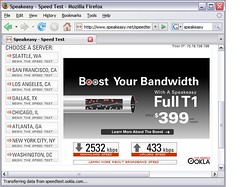
The bit rate tests are the average of three measurements alternating between two providers who do speed testing. Speakeasy has a location in the San Francisco Bay Area, and WUGnet.
SpeakEasy is shown in the pic below.
WUGnet is shown in the pic below
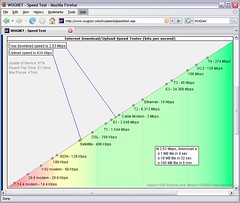
I tested the H.323 by connecting to a public Codian MCU at IP address: 64.71.128.186.
For those techies reading this: I did not use a gatekeeper, although, I could have used the “Free Love” gatekeeper at Ohio State University. Note: I could not get a screen shot of the PolyCom PVX H.323 system, I’ll do a blog entry on that product working with a Codian IP-VCR and again with a Codian MCU in the next few weeks. I’ll include videos and pictures.
The Tracy Hot Spots tested in this report were:
- McDonalds on 11th Street
- StarBucks on 11th Street
- Barnes & Noble in the Mall (home sweet home for TracyReaderDad)
As luck may have it, each of these is served by a different wireless network provider.
What is a WiFi Hot Spot?
A Wi-Fi Hot Spot is a location that provides wireless high speed Internet connectivity. You can bring your laptop computer (or Wi-Fi capable cell phone, Blackberry, or the great iPhone) to this location to stay connected. (Hmmmm, whatever happened to down time and vacations?)
------Warning: Hi-Tech Blurbage Below----
If you have a Wi-Fi capable mobile device they follow one or more of several standard methods defined for the wireless transmission of Ethernet traffic (thank you Bob Metcalf, you rock!). These standards were developed by the IEEE (Institute of Electrical and Electronic Engineers….which Tech Detective was part of for 25 years until the fees became too bloated to make sense) and are known as the 802 series of standards. Under 802 there are several sub-standards for wireless transmission. I’ll give you a listing here, but if you really want to get dragged into the technical details go to this excellent Wikipedia entry.
Your laptop computer or hand held device will support one or more of the following (most support more than one).
- 802.11a: Operates at 54 Mbps for a distance of less than 100 feet. (a is not used much anymore)
- 802.11b: operates at 11 Mbps (million bits per second) and is good for a distance of about 100 feet.
- 802.11g: Operates at 54 Mbps and is also good at about 100 feet. This one is the most heavily used, I believe.
- 802.11n: Is coming “soon”. It operates at 248 Mbps at a range of about 210 feet. This is super handy if the Hot Spots connectivity to the Internet is 1.544 Mbps max. But talking to your table neighbor using High Definition video signals is now possible…of course you could just turn around and see them.
The range values will differ depending upon whether you are inside or outside, and how much coffee is in the area. Hey, it could be, as Tech Detective learned in Grad School microwaves are attenuated by water. That is why….oh never mind, we can get into that in another blog.
---End of Hi-Tech Blurbage----
Baseline Measurements taken at Home
Before venturing out into the cold cruel unknown, I did a quick set of wireless (Linksys wireless router) tests at home as a “baseline” to compare the hot spots.
Ambiance: OK, I get “free” coffee and breakfast, lunch, and dinner. My office is ok, not great. The table I work on is sufficiently large to use my mouse with either hand and I can open a notebook to write in. We have great KAT Country music at a reasonable volume that does not disturb work or induce dancing (well, most of the time, a good George Strait song gets me dancing all the time..).
Cost: $58.00 per month for unlimited access to the Internet. Broken down per hour, that comes to approximately (assuming 30 day month): 8 cents an hour. And we use it, my daughter is a night owl and I am an early bird. Sometimes we pass in the morning: “Good Night”, “Good Morning”. 
Login Ease: A breeze. Turn on the computer and it connects to either the wireless or wired DSL connection.
Network Provider: AT&T DSL
Bit Rate: I took the average of three tests with two different test sites (SpeakEasy and WUGnet). The results can different for each probably due to variations in Internet traffic and router hops:
SpeakEasy: Upstream: 435 kbps, DownStream: 2575 kbps
WUGnet: Upstream: 434 kbps, Downstream: 2560 kbps
Videoconferencing: Both ooVoo and H.323 work well.
McDonalds
Ambiance: I grabbed a nice large table in the corner near the bathrooms. At 8 AM during the week, there were very few people there and most just came in and left. It was very quiet and very conducive to concentration. When I asked about their Wi-Fi connection they gave me a sheet with instructions on how to connect.
Cost: $2.95 for 2 hours
Login Ease: Very easy.
Network Provider: Wayport
Bit Rate:
SpeakEasy: Upstream: 117 kbps, Downstream: 330 kbps
WUGnet: Upstream: 142 kbps, Downstream: 310 kbps
Videoconferencing: Both H.323 and ooVoo worked fine.
StarBucks
Ambiance: I grabbed a large table on the side directly under the music speaker. The music there was too loud for effective concentration and would impair a video meeting. At 8 AM during the week, there were TONS of people there. Everyone was having fun and the speaking volume was pretty high. When I asked about the Wi-Fi connection, the cashier pointed me to a sheet with instructions on how to connect. I grabbed it along with a napkin.
Cost: $9.99 for the day
Login Ease: Extremely difficult. For the fat fingered, this is the worst choice for logging in. One mistake and you have to re-enter thousands (only a slight exaggeration) of characters again and again and again, passwords, secret words, etc. Really bad.  Tech Detective almost got up and left….it was that bad.
Network Provider: T-Mobile
Bit Rate: WUGnet was either having problems or there is a connection problem between T-Mobile and WUGnet.
SpeakEasy: Upstream: 570 kbps, Downstream: 1377 kbps
WUGnet: Upstream: 500 kbps, Downstream: 590 kbps
Videoconferencing: Both ooVoo and H.323 worked.
Barnes & Noble
Ambiance: It’s Barnes & Noble, my favorite place on earth next to the beach behind Woody’s condo on Kauai. I grabbed our regular Friday night table (which is rather small) in the corner near the café and the garbage can. At 11 AM during the week, there were a few people there and the talking was hushed and not disturbing. Music was playing, but, again, it was hushed. I can sit at that table for hours and concentrate quite well. I did not seek an instruction sheet since I was now an old pro at connecting.
Cost: $3.99 for 2 hours. I met a person there who has AT&T service at home (like Tech Detective does) and he pays $1.00 extra per month for unlimited service at AT&T Hot Spots. Now THAT is a good deal!
Login Ease: Very Easy, similar to McD’s.
Network Provider: AT&T
Bit Rate: Screaming fast in both directions!
SpeakEasy: Upstream: 1468 kbps, Downstream: 1440 kbps
WUGnet: Upstream: 1310 kbps, Downstream: 1430 kbps
Videoconferencing: Both work fine, H.323 video quality to Codian is superb!
Summary
There are differences between Hot Spot locations. But they are minor.
Home is faster and cheaper (and the food and coffee are unlimited and free, but, so is the nagging).
Technically, any of the tested Hot Spots will do the job, even for those one or two of us who do videoconferencing. AT&T kicks butt with the upstream capability at Barnes & Noble, allowing videoconferencing at a very high quality.
Logging in is easier at McDonalds and Barnes & Noble.
The ambiance is widely different; from the hip, to the quiet, to the wonderful smell of books. The choice of location is up to you.
The cost for all is reasonable.
AND…you can videoconference from a Wi-Fi Hot Spot. There are times when this can come in VERY handy. For example, there is an organization that connects Service folks in Iraq to their families. Instead of searching for a videoconferencing room, a simple laptop and ooVoo, or an H.323 application, makes finding a “room” super easy! And... you can get "fries with that” (thank you Tim McGraw).
Un-hip Tech Detective says: Give me a Book or a Big Mac 
FYI…I was going to include a real world test. My Toyota was in need of service and the local Toyota dealer has a Free Wi-Fi Hot Spot. The good thing, for working folks, is that they can bring their car in for service and connect up to work for free…great idea! Unfortunately, the Wi-Fi was down at 7 AM when I was there. Arrrghhh….better luck next time.
ooVoo for Video Communication
August 2007
Rating: 5 Watertowers
-----
This Blog has moved...please read this entry here.
-----
“ooVoo” was introduced a few months ago, and the INSTANT Yeoldetechy loaded it and tried it, I was hooked! ooVoo has, in my opinion, the capability to finally meet the ideal of providing easy-to-use visual interactive communication for everyone. Truly a great application!
Yeoldetechy has been evangelizing, and using, “desktop videoconferencing” since 1992 (see www.telbitconsulting.com web site for scanned and uploaded articles from years past). Since that time the world of desktop videoconferencing has evolved from telephone-based systems (Integrated Services Digital Network, ISDN) that cost over $5000 to Internet based systems needing only a web cam and ranging in cost between FREE (for non-standards based) to less than $200 for standards based systems (these allow interoperability with videoconferencing systems in use at corporations, schools and universities).
In the old days, Yeoldetechy was dead set against products that were not based on the standards. Why introduce a product that was not interoperable with the rest of the world? Some very large companies did exactly that. And their products died.
However, the Internet has changed everything. Now, products for videoconferencing can be proprietary and still be standards based.
Yeoldetechy says: The Internet is the standard.
What do you need to use ooVoo?
First, you need a DSL (digital subscriber line) or cable modem Internet connection. These give you connections to the Internet at the higher “upstream” speeds required for videoconferencing. By “upstream” I mean the signal going UP into the Internet cloud. This needs to be at least 256,000 bits per second (256 kbps). Using a tool such as SpeakEasy (http://www.speakeasy.net/speedtest/) you can test your upstream speed (see Yeoldetechy article on WiFi hot spots to be posted in a week or so). Wireless networks in the home work fine, again, see the WiFi Hot Spot comparison for more information.
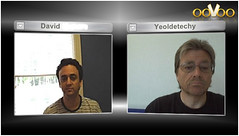
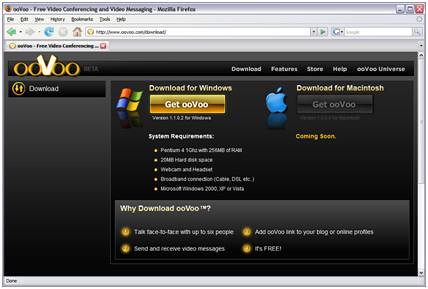
Second, at the present time (as of this writing, the Mac version is in “closed” Beta testing, availability expected in Fall 2007), you will need at least a 1 GHz Windows based PC running XP or Vista with 20 megabytes (MB) of hard disk space and 256 MB of RAM (random access memory). Ideally, this machine should be as fast as possible, but, mine (a Toshiba laptop) is working at the specified lower limit and it works just fine (see pics of the Three Amigos in a meeting). As an aside, in one of the pictures you see Christian in Paris, France. He is connected using a Mac that, using VMware Fusion, was working alongside the MacOS X. The video worked fine, but his audio did not (but realistically that could have been caused by any number of factors). The other features discussed below all worked fine.
Third, and last, you will need a web cam, and if you want to avoid echoing, a headset. I am using a Logitech 4000 and it works just fine. Many times I do not use the head set (also from Logitech, www.logitech.com), but, the quality of audio is much better with it. My headset plugs into the laptop’s mic and headset ports…it is NOT a USB headset (although I do want to get one and try it).
Installing ooVoo is as simple as visiting their web site and downloading the application. The installation takes a few minutes and worked without any problems.
What are ooVoo’s Features?
This is where ooVoo makes life very interesting. The integration of instant messaging (IM), file transfer capability, video mail, and, video & audio conferencing in a single package is terrific. Add extreme ease-of-use on top of that, and ooVoo is a product that has the capability to change the way we live and work! An added benefit is that you can call friends for “free” using ooVoo.
Instant Messaging and Chat
The idea of “presence” has become well known in the past few years as instant messaging has become more popular. In the old days, you made a phone call and more times than not the person was not around to accept your call. Now, with IM, you know if the person is there, or not. Very efficient. With ooVoo you can fire up a chat session to see if your “buddy” can accept a video call, or you can just video call them. Your choice. If all you needed to do was send a file, you could do that as well.
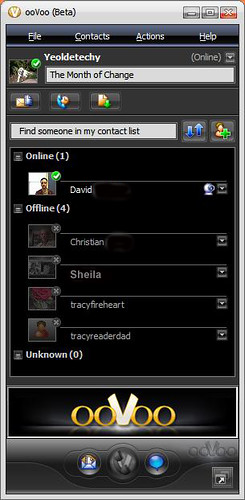
You can chat with one person or the whole group and you can decide what picture to show for each buddy or yourself. For example, I have chosen to show our Yellow Lab, Sunny, since he is far better looking than Yeoldetechy.
One possible “bug” (?) is that, in a multipoint call, I could see an indication that one participant was “typing” but never received a chat message. For the suspicious in all of us..  If that was not a fluke occurrence, ooVoo may want to fix that.
File Transfer
While in a call one participant can send files to one other participant or to the entire group. The file transfer is maddeningly slow, but, on the bright side it tells you it will be slow. In the multipoint call with Christian and Sheila, Sheila fired up a file transfer to all of us. During the course of the 15 minutes it took to get to us, Christian (because he was testing the Mac in Windows mode experiment) was in and out of the meeting. When the file was finally transferred, he got the file as originally planned. VERY cool.
Video Mail
An interesting feature is the ability to produce a video mail. An ooVoo user can view the video mail in ooVoo while non-ooVoo email recipients can view the video mail via a stream. The max length of a recording is 1 minute. Since video messages tend to be short, this is not a problem.
The ability to send a video mail has been around for quite some time. The interesting aspect is that the ooVoo video mail is “streamed” to user. The difference is this: with the old method the recipient needed to download a very large file to their computer then play it. With a “stream” the user watches the video mail like they watch a YouTube video or a news video in the Internet, the video mail starts to play instantly (well…almost) and when it is over, no copy is left on the recipient’s computer. The definition of streaming. VERY nice.
A couple of irritations when producing a video message. The window says to press “Record” to record. There is no button specifically labeled “Record”. There is a big Red button that when moused over says “Record”. Pressing that starts the recording. To stop the recording you have to press another button which is blue.

Yeoldetechy starting the recording session (above)
Ending the Recording session (below)
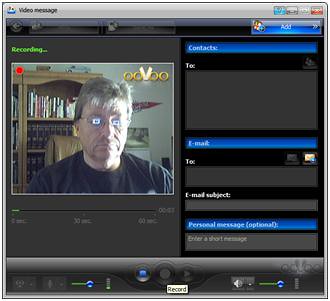
A few suggestions for ooVoo:
- Label the button (not a mouse over) to match the display, or change the display to match the button (see #2 and #3 below for the button suggestions)
- Use the same button to start and stop the record. In other words, use that button in toggle mode.
- In my mind (and I may be wrong) Green means start and Red means stop.
Video and Audio Conferencing
As I have mentioned the video and audio quality is every bit as good as a desktop videoconferencing product you can purchase. The difference is the lack of standards based H.323 interoperability. This means that if you are a TeleWorker and need to communicate into a Conference Room H.323 system or into an MCU (multipoint control unit) to attend a meeting, you cannot do that with ooVoo.
Does Yeoldetechy want ooVoo to implement H.323? Not really. If a person needs to do H.323 they have choices. If ooVoo implemented H.323 it could open up new avenues, but, it could also bloat the application and complicate it (need to enter gatekeeper information, calling via E.164 number, or IP address, etc. etc.).
Yeoldetechy says: Keep ooVoo simple, fresh, and new.
In a video call, you can select one person to fill the display. This is a nice feature that was introduced in the latest software version.
If you do not have a camera, ooVoo will still work in audio only mode. Think of the cost savings over ordinary telephone service…
Security Features
ooVoo has implemented security features to stop the random person from contacting you. They have implemented, as a default, the higher security of allowing only contacts to contact you. As you become more comfortable with ooVoo you can open up the security.
ooVoo login consists of a login and password that you select. Yeoldetechy is not sure if that login and password is secure (i.e. like https) or not. I can check.
Firewalls? Interesting question. Looking at my Windows XP firewall information ooVoo opened up several ports. See the pics. This may be an issue for those who have firewalls at work. This is not surprising since this is a common “weakness” of H.323 standards based products as well.
Yeoldetechy says: When planning to use videoconferencing over the Internet, especially at work, make friends with the network and security folks. I hear they like donuts.
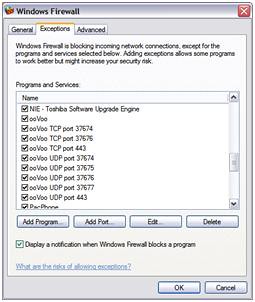
Other Features
ooVoo has other features that I have tried or will try as time permits.
You can form a group and you can block unwanted callers (and manage those blocked callers).
You can also add ooVoo to your blog or MySpace account so people can call you easily from those locations. Try as I might, I cannot find out how this is done. There is no information on the ooVoo Web Help Site, that I can find, and there is no apparent menu option in ooVoo.
You can set up a “favorites bar” with up to six of favorite buddies. This allows you to communicate easily with these people. All I need is more friends….
Missing Features 
One feature that is not included, and one that Yeoldetechy would like to see, is a call status capability.
For example, I want to see the call bit rate, and preferably have the ability to change it manually. Also, when sending a file, the bit rate, when video is being used is rather slow (hmmmm, VERY slow). Yeoldetechy would also like the ability to crank that speed up.
On the video side, ooVoo has implemented a robust set of features in their latest release. One additional feature they may think about that is the ability to turn off your picture while in multipoint (more than two people) mode. If as shown below, I could only see Sheila and Christian….that would be an improvement. 
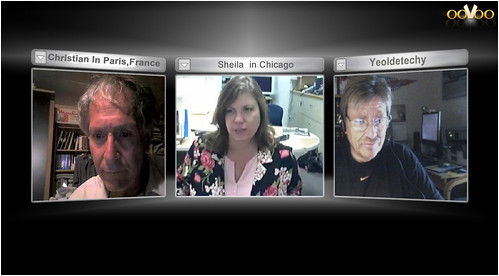
Will it remain FREE?
Ah…the big question. Will ooVoo remain a free service? I suspect it will, and that advertising will occupy space on the user interface. But who knows…maybe we can get ooVoo to respond to this question?
You have to love the folks at ooVoo. I sent an email to ooVoo, and the very next day I received this response from Kyla:
“ooVoo’s service will remain free. Right now we’re focused on getting as many people on ooVoo as possible, and we’re dedicated to getting people excited about using face-to-face video on a daily basis.”
How will ooVoo support the masses?
Once ooVoo has become a household name, it remains to be seen how support will scale to thousands of simultaneous users while maintaining video and audio quality.
Future Plans
Embedded in Kyla’s response were some future features planned for ooVoo.
“In the coming months we’ll be adding premium features expanding ooVoo’s capabilities, which will be available for an additional cost. We have many exciting ideas in mind for the future, some upcoming examples include:
You’ll be able to connect people from a cell phone or landline into an ooVoo call
People will be able to personalize their ooVoo experience with different backgrounds, ringtones, or avatars
We’ll also be offering a business package that would possibly include more windows for a conference call and other files sharing/ markup capabilities
The ability to send video messages to cell phones
ooVoo will be running non-intrusive, interactive advertising.
Finally, we’ll be forming partnerships with vendors and social networks, allowing social network users to leverage face-to-face video and sharing revenues with our partners.”
Yeoldetechy says: Sounds like a bright future!
Conclusion
The time for video collaboration has come (finally!). If you Telework, this is a great way to stay connected. If you are a teacher, then you can bring in experts from around the world to talk to your class . If you have family in other states, or kids at school, you can stay connected!
ooVoo can be the application that makes video collaboration commonplace.
Subscribe to:
Posts (Atom)